Internet
5-5-2023 - updated 31-8-2023
For me it all started with the internet. I was fiddling with computers since I was young, but sorta lost interest since Windows 95. I was totally into MS-DOS at the time. The windows interface was like an unclear filter to me.
I regained my interest when I started designing web pages at University. It was both easy and creative, it fitted me like a glove. And if you design software applications you should know how the internet works.
There are many articles and videos about how the internet works. You can do deep dives on all of the different aspects. In this article I will try to zoom in on a few of these aspects, cutting corners. So please forgive me.
The internet: How does it work?
The internet is short for "interconnected computer networks". But now the word is used out-of-context. Like, "Look for it on the internet". The information is not "on the internet", but can be found using the internet. Semantics... whatever. The internet is a global system of interconnected computer networks. So, describing it is a bit difficult, it changes all the time. Networks come and go. I will not go into that.
With this article I want to dive into some of the infrastructures and technology that allows the internet to work, relevant to a software developer. I will zoom in gradually, so if you think: I already know this... you can skip to next chapter.
Visiting a website
As an example I will use a website visit. So, where to begin? Let's start with your device. You are visiting my website, maybe with a smartphone, tablet, laptop or in another way. I will refer to this as "your device". Your device is connected to the internet, you probably already know this.
Your device magically shows this article when visiting my website, right? However, this article comes from some place on the internet. The article, or in fact my website is "hosted" on GitHub, which uses a machine we call a server. A server is a computer serving the content of my website (cutting lots of corners here).
You found my website using your device, and you decided to visit. Your device requested my website on the GitHub server. This is referred to as a "request". The server sends the website content to your device. This is referred to as the " response".
Your device will need to know where to send the request, and the server will need to know where to send the response, right? So here comes the Internet Address:
Zoom-level: Internet address
Your device has an internet address. Just like a street address, this is how your device can be found. This internet address is called the IP address. IP means Internet Protocol, more about that later.
The IP address has the form xxx.xxx.xxx.xxx, where xxx must be a number from 0 - 255.
The picture illustrates a device, with address 1.0.0.1 connected to a server with address 2.0.0.2.
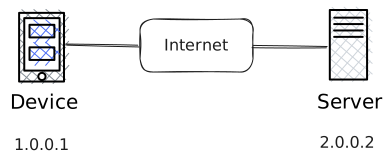
When visiting my website, your device with address 1.0.0.1 sends a request to the server at 2.0.0.2. The server sends the website as a response back to your address at 1.0.0.1.
Your IP-address
You can find your IP-address with websites such as What is my IP? Or DuckDuckGo.
Ping
You can check if a device or server is connected to the internet using the ping program. In windows you can go to the command prompt window (by typing cmd in the search bar). In the window you can type:
ping helmerdendekker.github.ioIf all is fine, you will get a reply from the address, giving the IP address it is running on, and the response time, together with some statistics. The reply should look like this:
Reply from 185.199.111.153: bytes=32 time=18ms TTL=57
Reply from 185.199.111.153: bytes=32 time=21ms TTL=57
Reply from 185.199.111.153: bytes=32 time=14ms TTL=57
Reply from 185.199.111.153: bytes=32 time=15ms TTL=57

Ping statistics for 185.199.111.153:
     Packets: Sent = 4, Received = 4, Lost = 0 (0% loss),
Approximate round trip times in milli-seconds:
    Minimum = 14ms, Maximum = 21ms, Average = 17ms
Zoom-level: System protocols
Now we can dip our toes further into the interconnection between the systems. So on the one side there is your device at IP-address 1.0.0.1. On the other side there is a server with my webpage, with IP-address 185.199.111.153 as we found out.
When you request my webpage with your device, the server sends packets from IP-address 185.199.111.153 to your device. The server is also known as the Host, since it hosts the website. The packet contains the information you requested. Your device is regarded as a Client.
The host is part of a network, and uses a router to send the packet "over the internet" to your network. The network sends the packet to the client, where your browser changes my html and css into something a bit more readable on your screen.
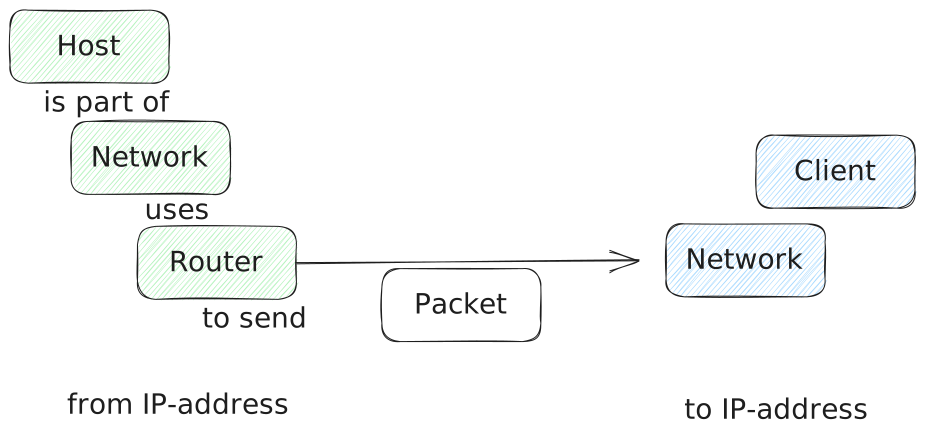
We can take a deep dive into what is actually happening.
Locate the website with an URL
So what happens if you visit my website?
My website is hosted on https://helmerdendekker.github.io/, which is a URL. A Uniform Resource Locator is a reference to a web resource. This web resource specifies a location on a computer network. Wait! What? So somewhere the URL https://helmerdendekker.github.io/ must become the network location with IP-address 185.199.111.153. How does that happen?
This is where DNS comes in, another three letter abbreviation. Don't we love them. There are many more to come. DNS is Domain Name System, a naming system for computer. So when you look for the URL https://helmerdendekker.github.io/, the DNS knows it should go to the network location with IP-address 185.199.111.153. For older guys: the DNS is like the phonebook for the internet. I have not used a phone book for 25 years...
If you used the ping program explained earlier, this is what has happened. The DNS found the URL mapped to the IP-address and send you to that place.
Sending the page to you: OSI and TCP/IP
Lets assume you wanted to visit my homepage on https://helmerdendekker.github.io/. My explanation here is loosely based on the OSI model.
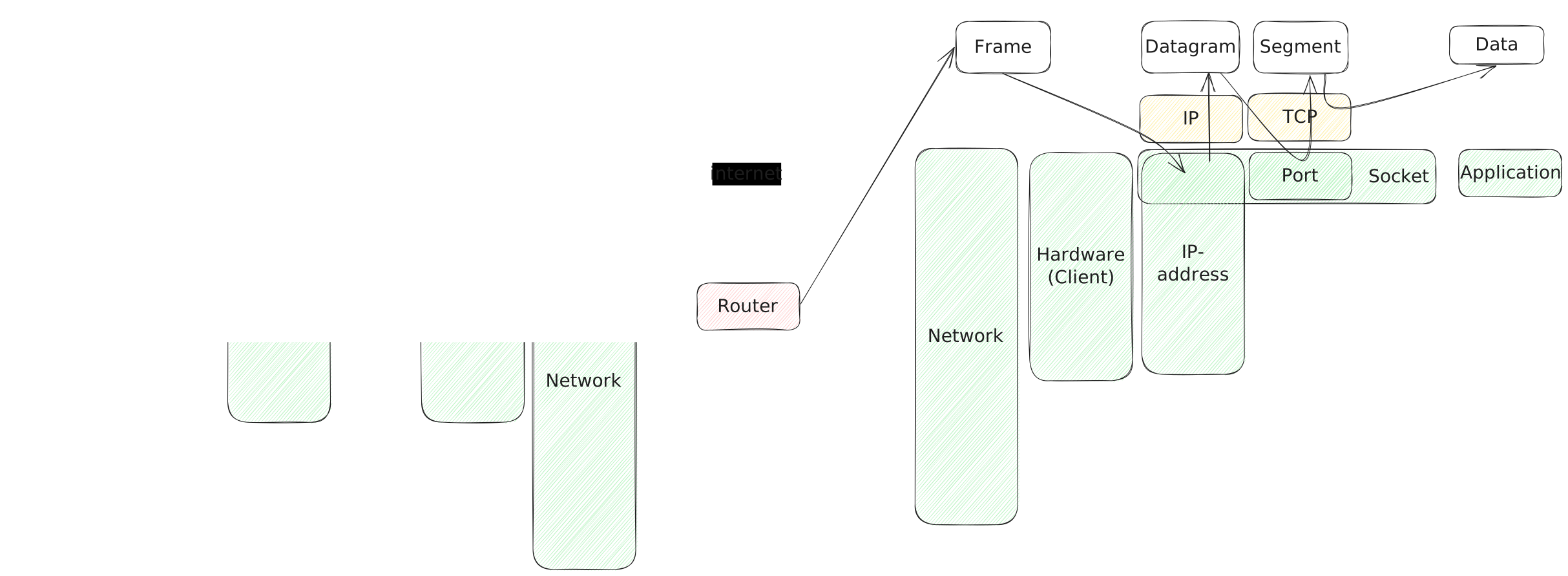
The request reaches my application. The application returns the homepage, I will refer to this as the "Data". It adds HTTP headers to the data.
The system will hand the Data and HTTP header over to the Transport layer, where the TCP will divide the "Data" into multiple packets, called "Segments". Each segment has a sequence number, the (destination) port number and data. Analogy: You placed a large order in a shop. The guy in the warehouse puts your order in multiple boxes, with your customer number and a sequence number (box 1 of 4).
Next the system will hand it over to the Network layer. The IP-protocol will create a "IP Datagram", where it will add the IP-header to the segments, with the source and destination IP-addresses. Analogy: The boxes containing your order get a sticker with your address on it and a return address from the webshop.
The packets are ready to go. The system will adapt the packets in the "Data link layer" to get a "Frame" by adding a MAC header, containing the source and destination MAC address. This is where the OSI model will get confusing. So, let me explain it like this:
The "Frame" is transformed to a bit-signal by the hardware of your system, and sent to a router. The router will check and or change MAC- and IP-addresses and send it along until it reaches your router. Your router sends the message to the Client (your device).
There it will take the trip reversed. Your device translates the bits-signal into a Frame, into an IP-Datagram, next into a TCP-Segment, next to the Data, which the browser-application will turn into screen pixels. And, just like that, you are reading this text.
OSI-model
I will not deep dive into the OSI model. Because that will just keep me typing and we both do not want that. In my opinion it is a nice way to describe the architecture of system interconnection, but reality has lots of nuances.
- level 7: Application layer (SMTP, HTTP, FTP HTTPS, P2P etc)
- level 4: Transport layer (TCP, UDP)
- level 3: Network layer (IP, ICMP, IPSEC, etc)
- level 2: Data link layer (ARP, VLAN, STP, etc)
- level 1: Physical layer
IP The Internet Protocol
The IP-protocol in this program delivers the packages from the host to the client based on the IP-address.
IP address
Your device has an address. This is called the IP-address. The protocol is like a mail-address, where you send your letter to a mail address, and you put the return address on the other side (weird how the internet is explained like this by old guys like me. Who sends letters these days?). You get the idea right? So your device can be found "on the internet" with the IP-address. If I send you some message, I have my address added to it, so you know who it came from. That is basically the way the protocol works.
Datagram service
I mentioned the IP Datagram before. The IP protocol encapsulates data (payload) into datagrams (payload + header), another way to put it: It adds a header to your data. The header contains the IP-addresses (of the sender and receiver, or as you wish host and client).
What do I need to know as developer?
- IP-addresses can be spoofed. A hacker can change the header of the IP-packet. This is a way to "overcome" network security measures.
- A hacker can hack into a DNS, changing the routing from your website, to their own malicious website.
- You can hide your IP-address by using a VPN. Which is useful to binge that series only available in the USA.
IP is unreliable, and connectionless. IP will not check if packets will reach the destination. IP does not know about connections and port numbers. It just sends and routes packages.
TCP The Transmission Control Protocol
TCP is an abbreviation for Transmission Control Protocol. TCP completes the Internet Protocol. IP is the datagram and routing service, TCP is a byte-stream- and application-routing service. TCP (error-)checks and orders the incoming IP-packages. It puts the packets in order, and sends the byte stream to the correct application on your device. The Segment (TCP packet) consists of the port numbers for the source and destination, a sequence number, checksum, some more settings and the data. TCP is a stateful protocol. It needs to keep the state of the connection, and the packets transferred and received.
You want to see how this works for yourself? Download TCPview! It will show you all of the applications and ports running on your computer (and more). You can visit this website and TCPview will show your own local IP-address, the local port (in my case for my FireFox tab), and the remote IP-address 185.199.111.153. Also, TCPview shows the socket states. This is reflects the state of the protocol the endpoint is in. Read more about the detailed workings on Wikipedia - Transmission Control Protocol
TCP is a connection-oriented, reliable, byte stream service.
Other protocols in the same OSI level
Another protocol on this level is UDP, the User Datagram Protocol. This protocol uses simple connectionless communication to send datagrams to other hosts on IP-networks. Compared to TCP, it has no error-checking and you are exposed to the unreliability of the IP-protocol. A newer protocol replacing TCP is QUIC, read more on MDN Web Docs.
What do I need to know as developer?
You can use TCP for inter-application communication, if your two applications run on the same machine.
HTTP Hypertext Transfer Protocol
HTTP is short for HyperText Transfer Protocol. HyperText are digital texts containing hyperlinks. The internet was designed to share information, just like wikipedia does, sharing plain texts with hyperlinks to other subjects. HTTP is an application-layer protocol for transmitting hypermedia documents. So, these days that is more than just text, and more than just web-browser to web-server communication.
HTTP is stateless - the state is not stored in this protocol. It is a client-server style protocol.
You can find more details in the HTTP - MDN Web Docs.
Example for visiting this website
If you open the inspector in your web browser, you can inspect all the HTTP calls made by the browser in the Network tab:

These are the HTTP calls the web browser makes to the web server. The HTTP protocol has (request) methods and (response) status codes. The method or "request method token" as it is named officially, indicates the purpose for which the client made this request. The RFC 9110 has an overview of the methods and further explanations. In the example above, the top request shows a GET method for requesting the website, transferring the HTML of the website.
The status code is 200, which means OK. You can click on the HTTP call to see the details: 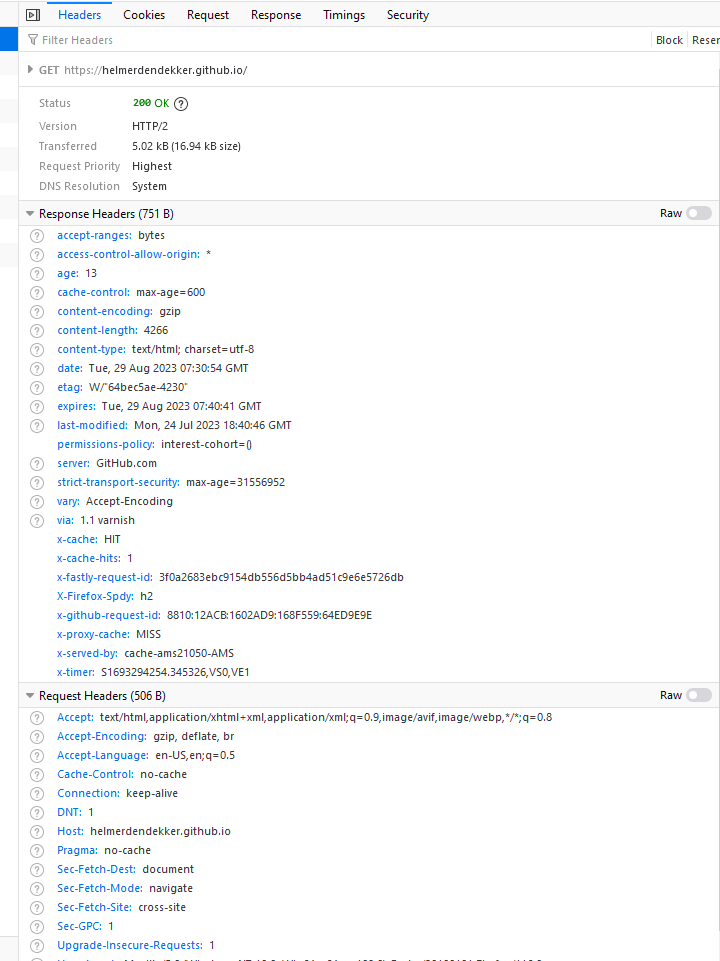
There are several tabs with details. We are looking at the header details now. The HTTP protocol adds a header to the request. In the first section you see the information about the HTTP request, like status code, version, etc. For me the status code and version are the most interesting parts here.
The statuscode is 200 OK. All of the statuscodes can be found in the RFC 9110.
The version is HTTP/2, read more about versions on MDN Web Docs
Next section is about the Response Headers. This is where you can find a lot of information about the response served by the server. This is a goldmine for hackers. So expose as little as possible about your server.
The last section is about the Request Headers. The request headers send along a lot of information about me, so I am not going to show you all of the headers. Try this for yourself.
There are multiple tabs, aside of the request information you can find info on your Cookies, Request payload, Response payload, Timings and Security. I do not use these often, and they are out of scope for this article.
Postman or Fiddler
You can use Postman or Fiddler for firing HTTP calls, but this will not give you more info than the inspector.
Other protocols in the same OSI level
SMTP, the Simple Mail Transfer protocol. This is also a text protocol, but connection oriented. It is a bit more complicated than HTTP. This protocol is used for sending mail, but in my experience as a developer, I used a provider to take care of the nitty gritty details for me. FTP. File transfer protocol. This is a protocol for transferring files from a client to server or vice versa. I used it a very long time ago, for deployment purposes.
Networking Infrastructure
Networking and infrastructure are not really things I care about as a developer. It should work. However, I did find this really cool program to see how the packets traverse through the networks connected to the internet.
TraceRoute program
The trace route program traces packet traversing over the internet to the destination. You can try typing this in the command line:
tracert helmerdendekker.github.ioThe result should look like this:
Tracing route to helmerdendekker.github.io [185.199.111.153]
over a maximum of 30 hops:

  1     3 ms     2 ms     3 ms  216.169.69.1
  2     3 ms     3 ms     6 ms  216.169.179.1
  3    13 ms    13 ms    11 ms  21.161.45.852
  4    37 ms    14 ms    12 ms  262.568.65.169
  5    23 ms    20 ms    15 ms  abd-rc00101-cr101-be101-2.core.ab34395.net [215.51.7.87]
  6    16 ms    16 ms    16 ms  abd-rc00101-cr101-be101-2.core.ab34395.net [215.51.7.87]
  7    15 ms    14 ms    14 ms  nl-ams14a-ri1-ae50.core.ab9143.net [215.51.64.57]
  8    16 ms    13 ms    17 ms  215.48.192.166
  9    20 ms    16 ms    12 ms  cdn-185-199-111-153.github.com [185.199.111.153]

Trace complete.
I changed the IP-addresses in the example above, but clearly it hops from my computer to my router, to my provider, and next to "I do not know where", but it ends up at github. The ip-addresses with the characters in them are internet routers. Pretty cool!
Resources
Internet
Rus Shuler 2002 - How does the internet work?
CS FYI - How does the Internet Work?
Roadmap.sh - What is internet